How to Convert JPG to WebP (Online & Offline) using Squoosh.app
Are you looking for the best way to convert JPG to WebP to improve your website’s loading speed? In this guide, I will show you how to convert images to WebP format both online and offline using a powerful, free tool called Squoosh.app.
Squoosh is a professional-grade web app that has been a go-to tool for high-quality image conversion for years. Because it runs in the browser and functions as a Progressive Web App (PWA), it is fully compatible with Windows, macOS, and Linux.
Step 1: Open Squoosh.app and Upload Your Image
To get started, open your web browser and go to squoosh.app. The interface is incredibly user-friendly. All we need to do is drag and drop the image into this interface to begin the conversion process.
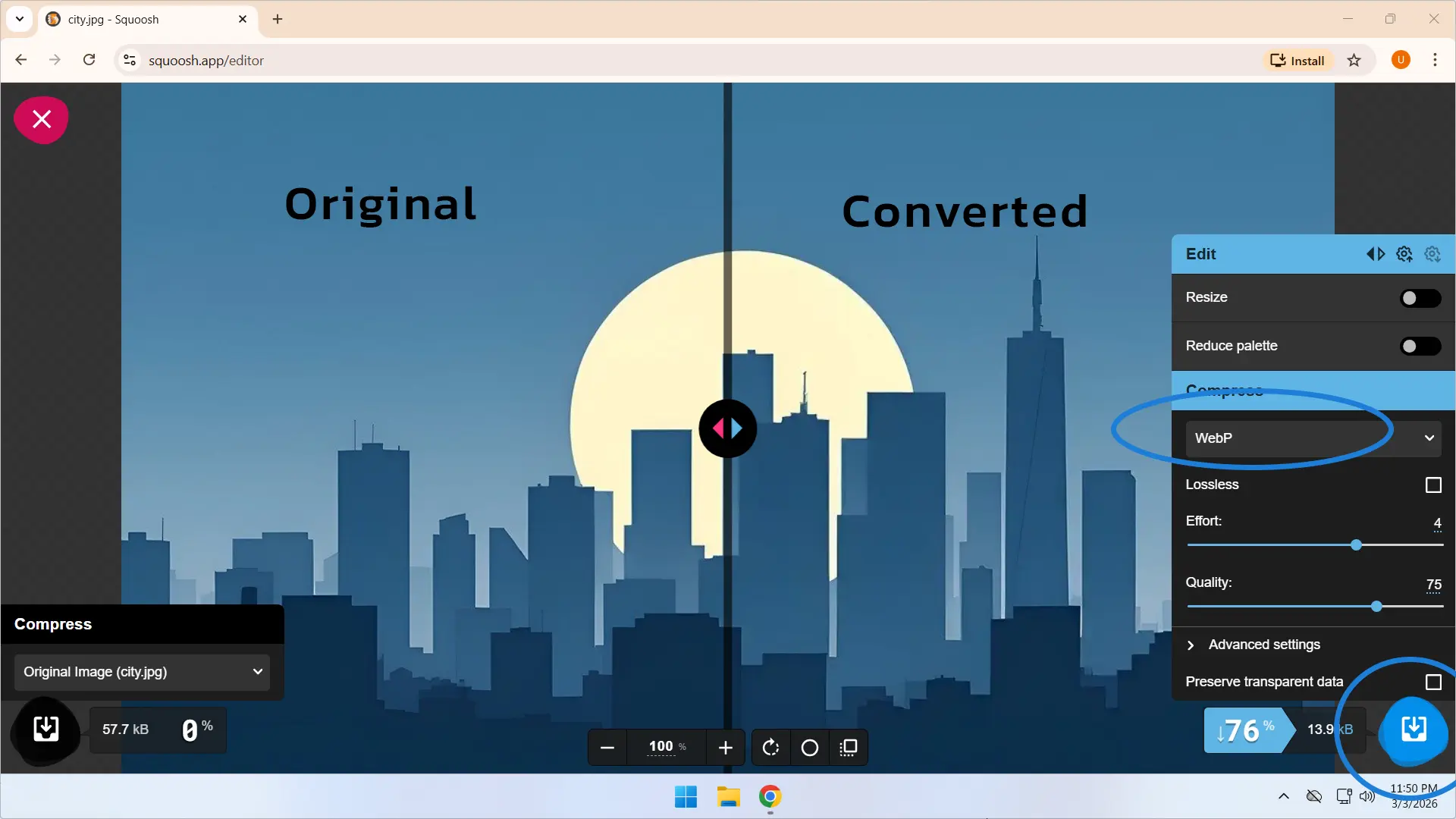
Step 2: Select WebP Format and Compare Quality
Once your image is uploaded, select WebP as the output format. Squoosh provides a unique split-screen view to help you see exactly what is happening to your file:
- Side-by-Side Comparison: On the left side, you will see the details of the original JPG image. On the right, you will see the details of the image after it was converted to WebP.
- The Comparison Slider: You can use this slider to compare the original versus the converted image in real-time. This ensures you maintain the best visual quality.
- File Size Reduction: Squoosh shows the exact size of the converted image and the percentage it will be reduced after the conversion. This is essential for website image optimization.
Step 3: Understanding the “Lossless” Option
Within the settings, you will see an option called “Lossless.”
Pro Tip: If you activate the Lossless option, the image quality will be better, but the file size will usually be higher. However, for some images—mostly black and white images or images with fewer details—selecting Lossless can actually produce a smaller file size. For most standard photos, you should uncheck this option to achieve the smallest file size possible.
Step 4: Download Your WebP Image
Once you have made all your choices and used the slider to view the final result, simply click the Download button. You now have a high-quality WebP image converted by Squoosh.
How to Convert JPG to WebP Offline
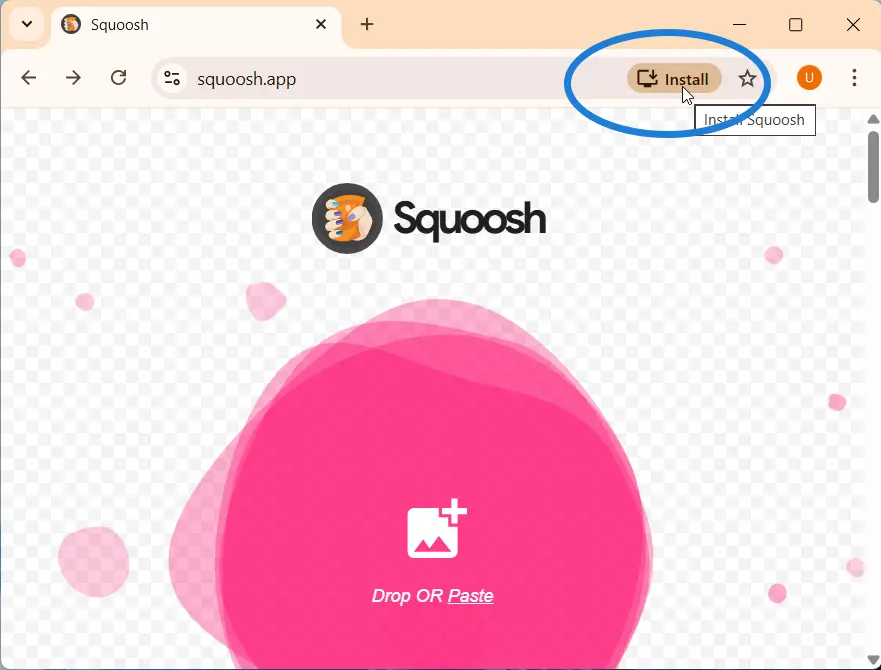
One of the best features of Squoosh.app is that it works as a Progressive Web App (PWA), meaning you can use it without an internet connection.
- Go to the squoosh.app home page.
- In your browser address bar, look for the Install icon.
- After you install it, you will find a start menu shortcut.
Now you can start converting JPG files to WebP offline as well! That is the easiest way to optimize your images using Squoosh.