How to Rotate Video in VLC and Save It Permanently (2026 Guide)
If you have ever opened a file only to find it’s upside down, you need to know how to rotate video in VLC media player. In this guide, I will show you how to rotate the playback in VLC and, more importantly, how to permanently rotate video and save it as a new video so it stays fixed forever.
How to Rotate Video in VLC Media Player
If you just want to fix the view while watching, VLC has built-in tools. This works on Windows, Linux, and macOS.
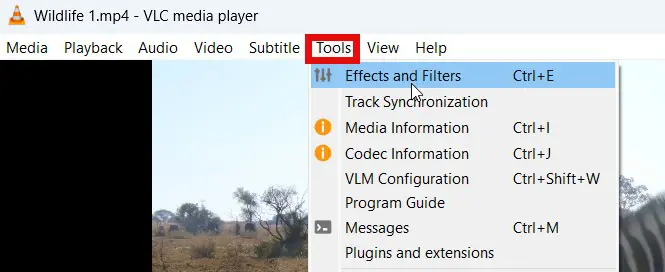
- Open your video and go to Tools > Effects and Filters.
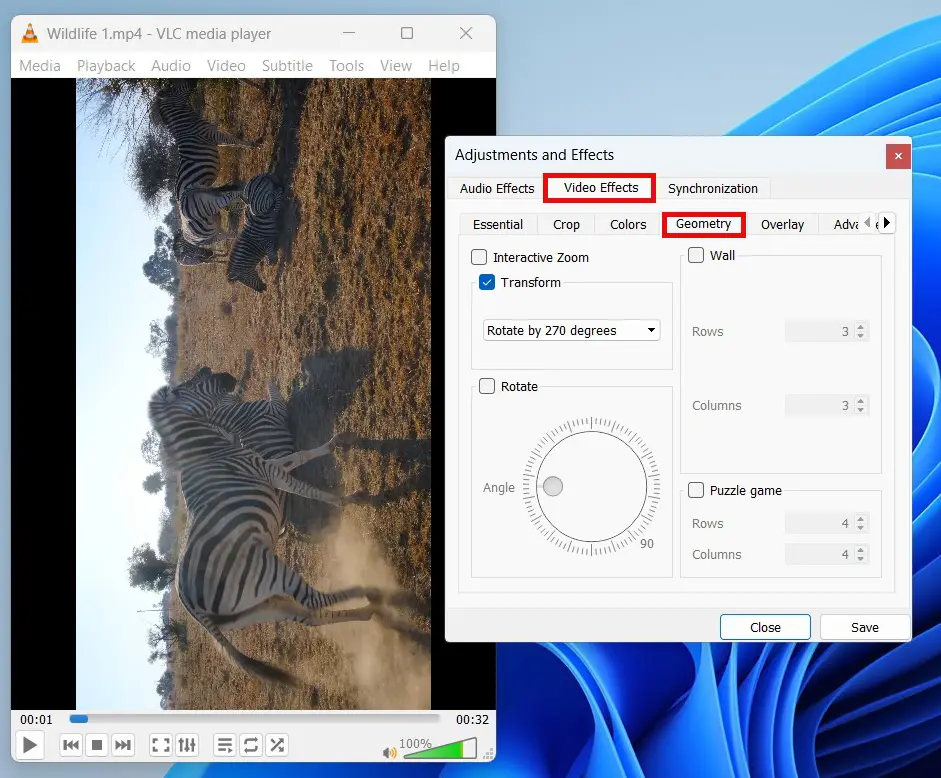
- Go to Video Effects and then the Geometry tab.
- You have two options here:
- Transform: Activate this checkbox to select a predefined rotation (e.g., 90 degrees, 180 degrees, or flip horizontally).
- Rotate: Activate this checkbox to select a custom angle using the dial.
The Problem with VLC Rotation
The problem here is that this effect applies to the VLC player itself, not just the video file. Every video you open now will have this rotation effect. This is not a permanent solution. To fix this, you must go back to the Geometry settings and deactivate the checkboxes before clicking Save.
How to Permanently Rotate and Save Video
If you want to fix a sideways video permanently, I recommend using a free software called Avidemux. It is a really useful software to have installed on your computer.
Avidemux is a free lightweight video editor designed for simple cutting, filtering and encoding tasks.
- Avidemux Download for Windows and macOS.
- For Linux, you can install it using Flatpak. Click here to learn more about Flatpak.
Step 1: Import Your Video
Drag and drop your video file directly into the Avidemux interface.
Step 2: Select Video Output
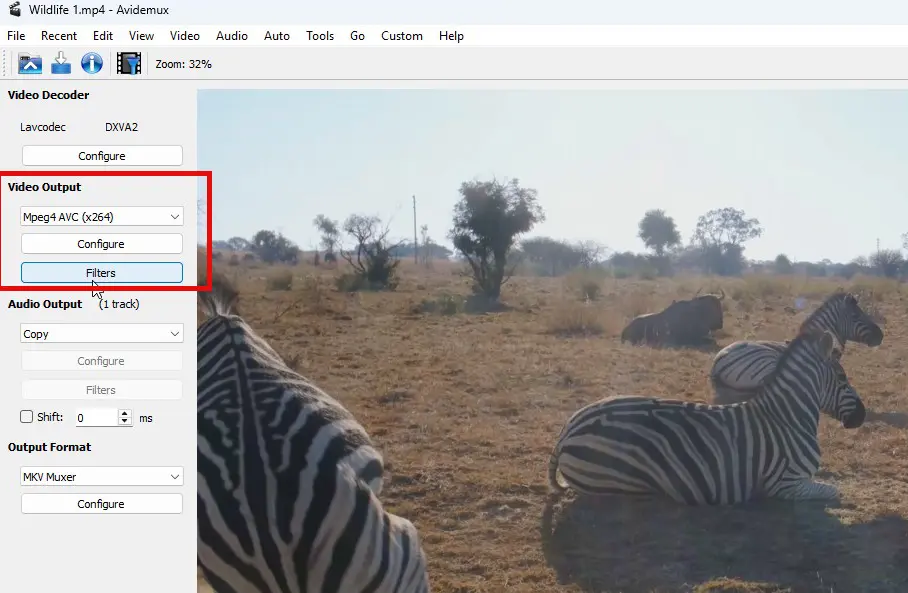
Select Mpeg4 AVC (x264). This is the standard format, but you can select another desired output if you prefer.
Step 3: Apply the Rotation Filter
- Click the Filters button under Video Output.
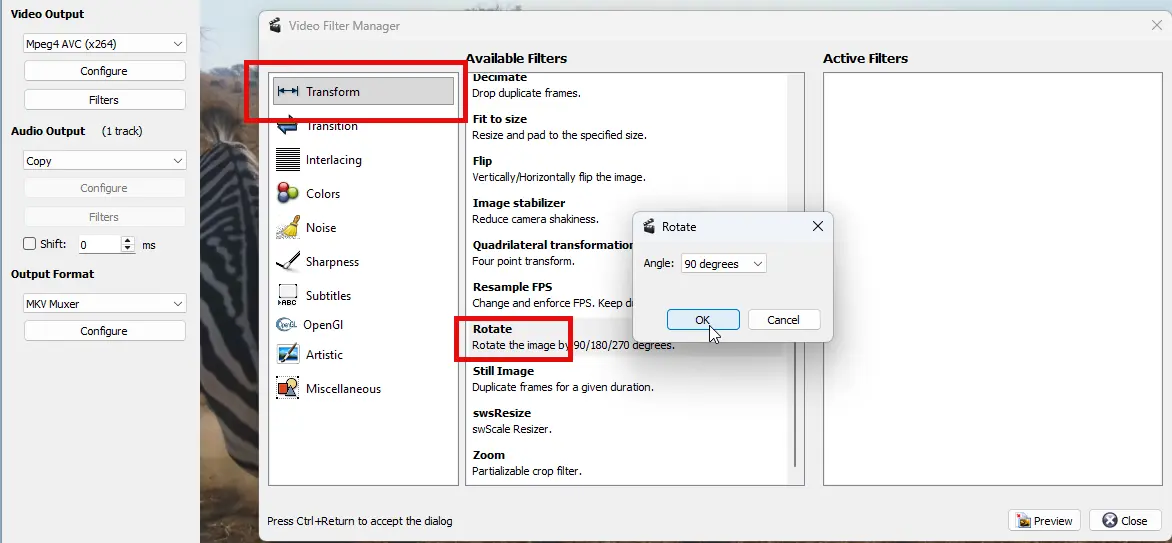
- Go to Transform and find the Rotate filter.
- Double-click the Rotate filter to open the settings.
- Select your angle (for example, 90°) and click OK.
- You can use the Preview button to see what the video is going to look like after the filter is applied.
Step 4: Configure Audio and Output Format
- For Audio Output, select Copy, because we are not changing anything on the audio side.
- For Output Format, choose MP4 Muxer, or the format matching your original file.
Step 5: Save the Rotated Video
Click the Save Video button (or go to File > Save). Choose a location and save it as a new video file.
Final Thoughts
That is how you can rotate video in VLC for a quick look, and how to use Avidemux to fix the orientation for good. Whether you are on Windows, Linux, or Mac, these steps will ensure your videos are never sideways again.
Frequently Asked Questions (FAQ)
- Does VLC save the rotated video? No, by default, VLC only rotates the display. You must use a converter like Avidemux to save it permanently.
- Is Avidemux free? Yes, Avidemux is open-source and free for Windows, Mac, and Linux.
- Will rotating a video lose quality? Using the x264 setting in Avidemux ensures high-quality results that look just like the original.