How to Add a Taskbar to Fedora 44 GNOME Desktop (Step-by-Step)
If you are using Fedora 44 GNOME, you may have noticed there is no taskbar by default. In this guide, we will look at how to add a taskbar to Fedora 44 GNOME Desktop using two popular GNOME extensions — Dash to Panel and Dash to Dock.
- Dash to Panel — gives you a Windows 11-style taskbar at the bottom of the screen
- Dash to Dock — gives you an Apple Mac-style dock
We will install both so you can decide which one you want to use.
Install GNOME Shell Extensions
Before enabling either extension, you need to install the GNOME Shell Extensions package. This is required to manage GNOME extensions on Fedora 44.
Open your terminal and run:
sudo dnf install gnome-extensions-appInstall Dash to Panel (Windows 11 Style Taskbar)
Dash to Panel is a GNOME extension that adds a Windows-style taskbar to your Fedora 44 GNOME desktop. Run this command to install it:
sudo dnf install gnome-shell-extension-dash-to-panelAfter installing, restart your computer.
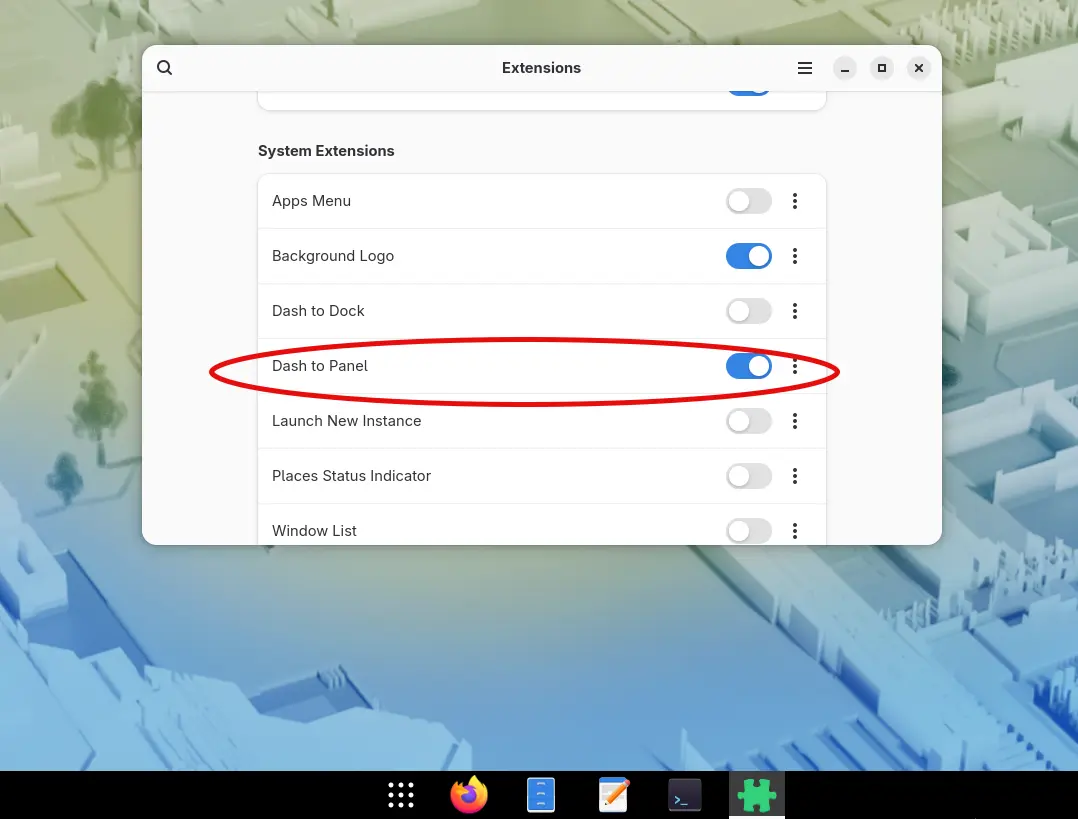
After the restart, open the Extensions app. You will now see Dash to Panel listed there. Toggle it on, and that will activate the Windows 11-style taskbar at the bottom of your screen.
Customize Dash to Panel Settings (Optional)
To customize it, click the settings button inside the Extensions app, or simply right-click the taskbar and select Dash to Panel Settings.
How to Center Icons on the Taskbar
- Go to Show Applications Button Settings
- Open the dropdown menu
- Select the Centered option
This will center all icons on the taskbar.
Show Desktop Button
Just like Windows 11, Dash to Panel includes a Show Desktop button in the far right corner of the taskbar. Click it to minimize all open windows and show your desktop instantly.
Install Dash to Dock (macOS Style Dock)
If you prefer a Mac-style dock, Dash to Dock is a great alternative. Run this command to install it:
sudo dnf install gnome-shell-extension-dash-to-dockRestart your computer after installing.
Enable Dash to Dock
After the restart, open the Extensions app. Before enabling Dash to Dock:
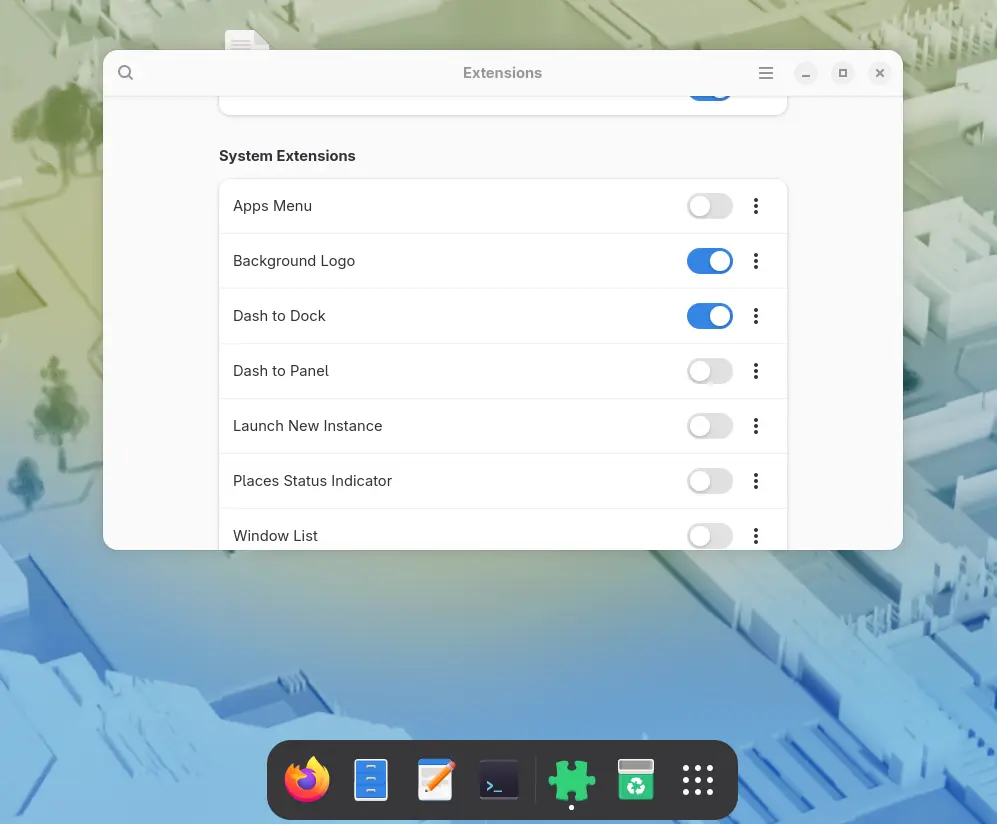
- Disable Dash to Panel first (you should only run one at a time)
- Then enable Dash to Dock
This will activate the Mac-style dock on your Fedora 44 GNOME desktop. By default, auto-hide is enabled.
Related Tutorials
If you are customizing Fedora 44 GNOME, you may also like:
