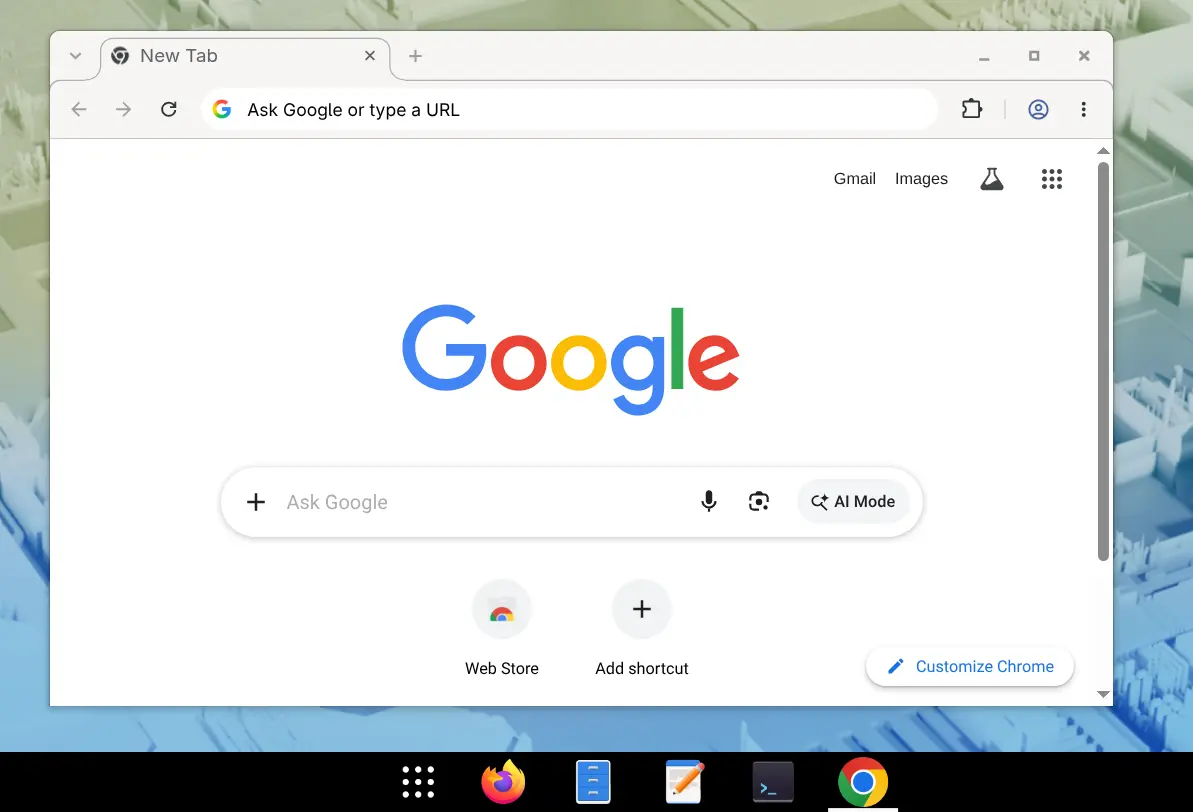
How to Install Google Chrome on Fedora 44 (Step-by-Step)
If you’ve just installed Fedora 44, you may notice that Google Chrome is not included by default.
This complete, beginner-friendly guide walks you through downloading and installing the official Google Chrome RPM package using the graphical software manager on both GNOME and KDE Plasma desktop environments.
Quick Summary: How to Install Chrome on Fedora 44
Here is exactly what we we need to do to install chrome on Fedora 44:
- Open Firefox and go to google.com/chrome.
- Click on the Download Chrome button
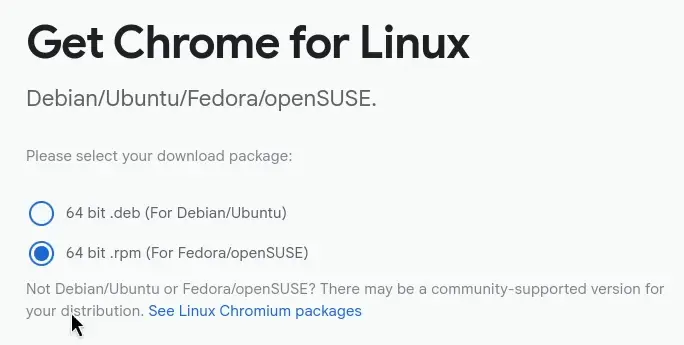
- Download the 64-bit
.rpmpackage. - Open your File Manager and navigate to the Downloads folder.
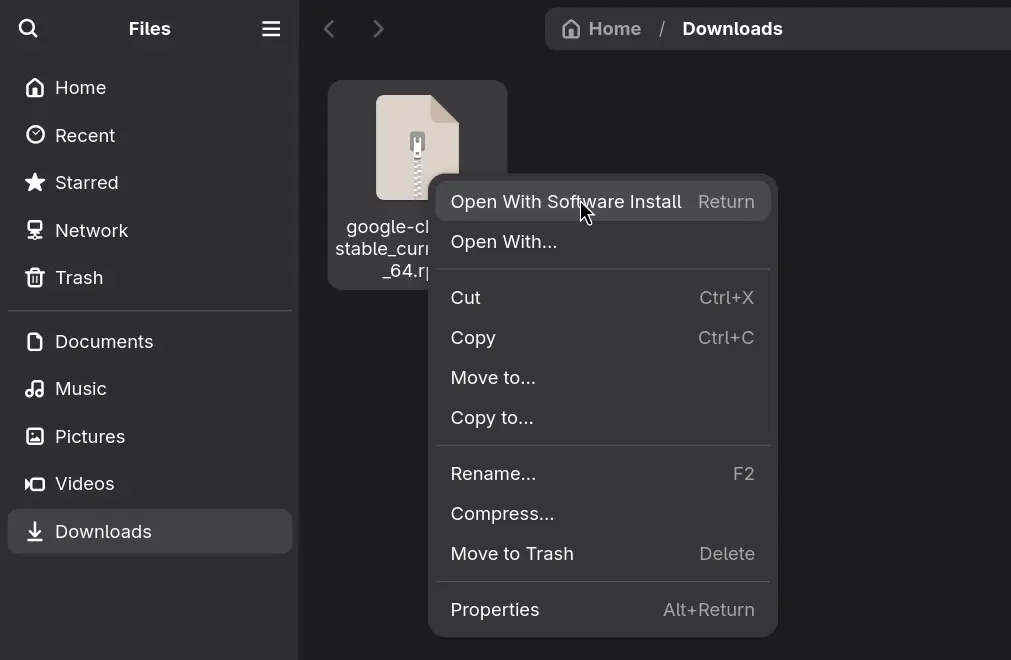
- On GNOME: Right-click the RPM package, choose Open with Software Install, and click Install.
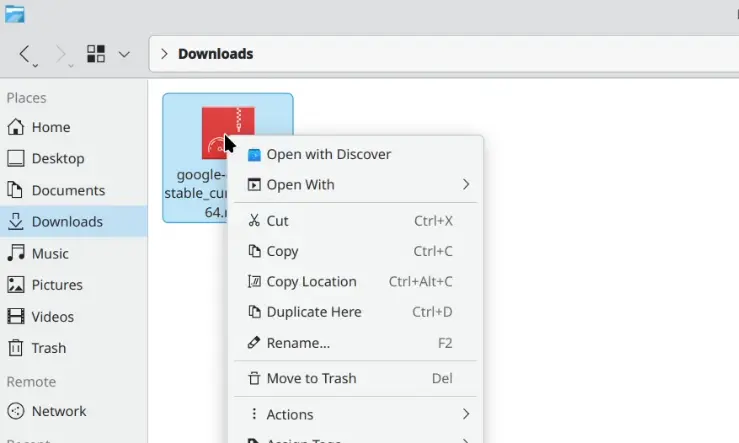
- On KDE: Right-click the package, choose Open with Discover, and click Install.
That’s it! That’s how you install Google Chrome on Fedora 44.
Complete Installation Walkthrough
So here let’s see how to install Google Chrome on Fedora 44 and what we need to do to get the official browser running on your Linux system.
Step 1: Download the Google Chrome RPM Package for Fedora
First, open Mozilla Firefox and then go to the URL https://www.google.com/chrome/.
Once the page loads, click on the Download Chrome button. A pop-up menu will give you installation options. Make sure to download the 64 bit RPM package (specifically listed for Fedora/openSUSE).
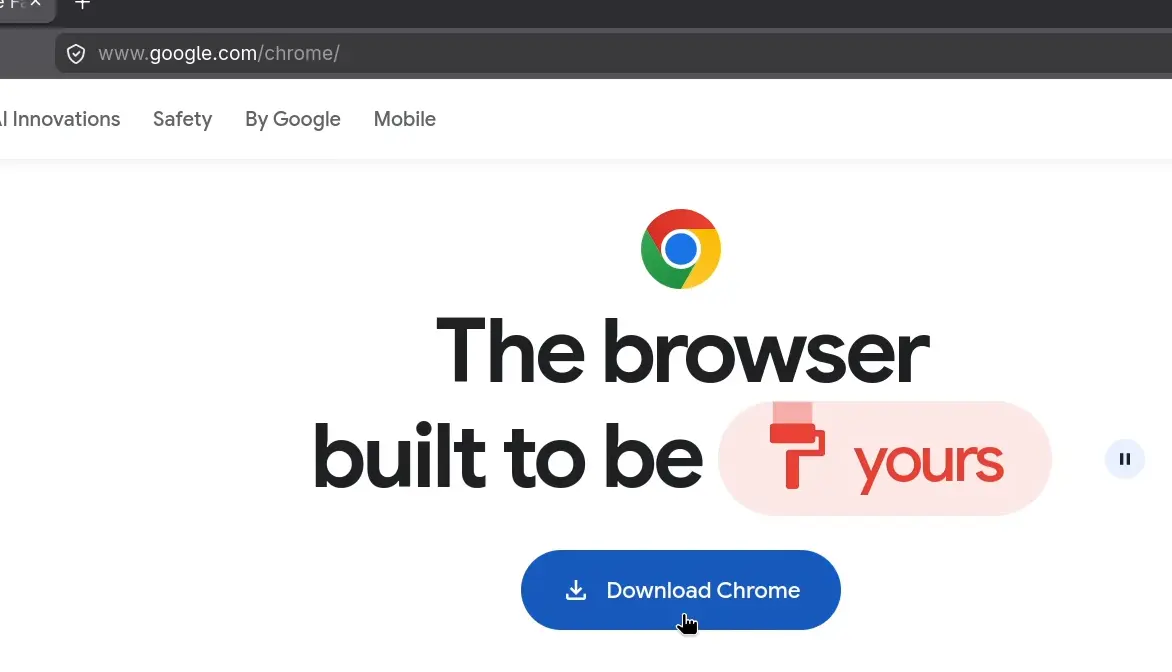
Then click on Accept and Install and that will download the Google Chrome package to your local system.
Step 2: Locate the Installer File
And then after the download is finished, open the File Manager and then go to the Downloads folder. Locate the file you just downloaded; it will end with a .rpm extension.
Step 3: Run the Graphical Software Installer
How you install it next depends on which desktop environment you are using:
- GNOME desktop: Right-click on the RPM package and select Open with Software Install, then click the Install button.
- KDE desktop: Right-click the package and select Open with Discover, then click the Install button.
Conclusion
OK, so then that’s how we install Google Chrome on Fedora 44. The process is quick, completely graphical, and avoids having to use the terminal command line. You can now open your application menu, launch Chrome, and set it as your default browser if you choose.