How to Install VS Code on Fedora 43: The Complete Guide
In this guide, we will look at how to install VS Code on Fedora 43. This tutorial is designed to work on both the GNOME and KDE desktop environments, ensuring a smooth setup regardless of your flavor of Fedora.
Install VS Code via Terminal
To install VS Code on Fedora 43, we need to set up the official Microsoft repository. Open your terminal and follow these commands.
Import the Repository Key:
sudo rpm --import https://packages.microsoft.com/keys/microsoft.asc
echo -e "[code]\nname=Visual Studio Code\nbaseurl=https://packages.microsoft.com/yumrepos/vscode\nenabled=1\nautorefresh=1\ntype=rpm-md\ngpgcheck=1\ngpgkey=https://packages.microsoft.com/keys/microsoft.asc" | sudo tee /etc/yum.repos.d/vscode.repo > /dev/null
Update and Install:
dnf check-update
sudo dnf install code
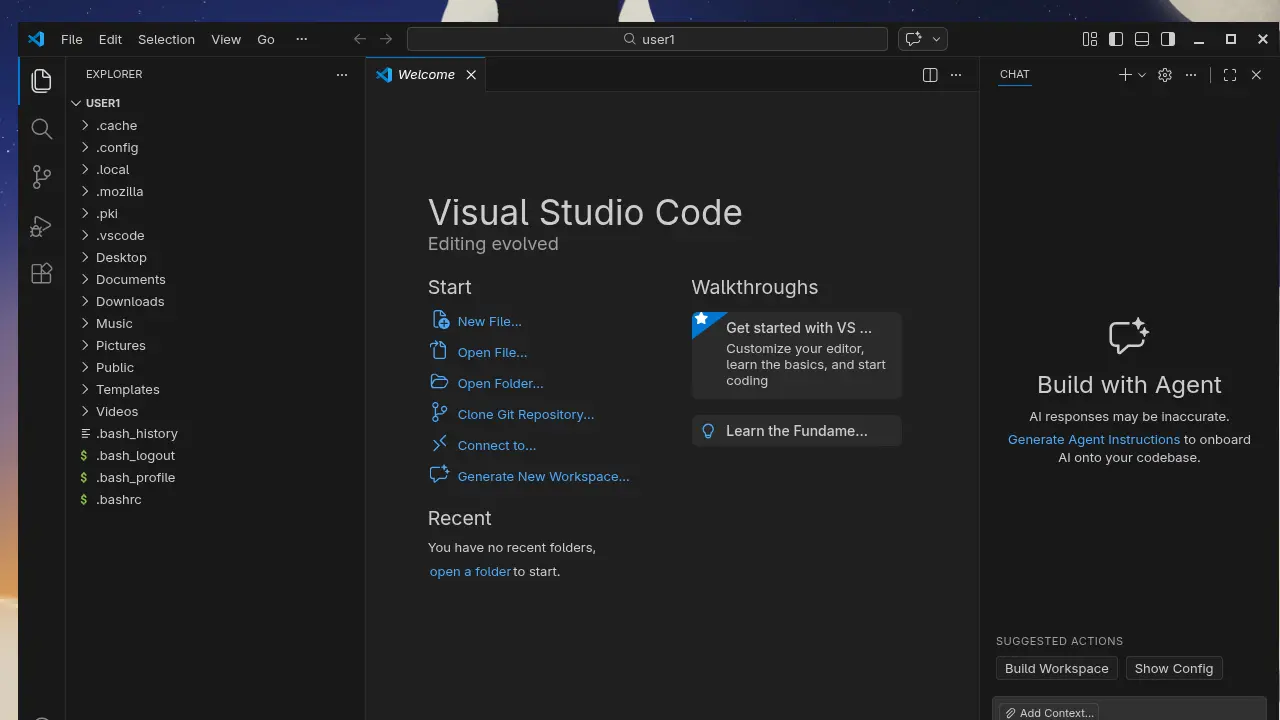
And that’s all for installation. Now you can open VS Code for the first time.
Add “Open with VS Code” to File Manager
One of the best features of VS Code on Windows is the “Open with Code” right-click option. Fedora does not have this by default, so we will configure it manually for both GNOME (Nautilus) and KDE (Dolphin).
For GNOME Desktop (Nautilus)
Install Nautilus Python: First, install the nautilus-python package:
sudo dnf install nautilus-python --releasever=44If you already have it, run the command to update it to the latest version:
sudo dnf update nautilus-python --releasever=44Create the Extension Folder: Run this command to create the necessary directory:
mkdir -p ~/.local/share/nautilus-python/extensions/Create the Script: We need to create a file called vscode-extension.py in that folder. You can use the VS Code editor to create and open this file.
code ~/.local/share/nautilus-python/extensions/vscode-extension.pyAdd Configuration: Paste your configuration script into the file and save it.
import gi
gi.require_version('Nautilus', '4.1')
from gi.repository import Nautilus, GObject
import os

class VSCodeExtension(GObject.GObject, Nautilus.MenuProvider):
    def __init__(self):
        super().__init__()

    def menu_activate_cb(self, menu, file):
        path = file.get_location().get_path()
        os.system(f'code "{path}"')

    def get_file_items(self, *args):
        # Handles both the new (files) and old (window, files) signatures
        files = args[-1]
        if len(files) != 1 or not files[0].is_directory():
            return []

        item = Nautilus.MenuItem(
            name='OpenVSCode',
            label='Open in VS Code'
        )
        item.connect('activate', self.menu_activate_cb, files[0])
        return [item]

    def get_background_items(self, *args):
        # Handles both the new (folder) and old (window, folder) signatures
        folder = args[-1]
        item = Nautilus.MenuItem(
            name='OpenVSCodeBackground',
            label='Open in VS Code'
        )
        item.connect('activate', self.menu_activate_cb, folder)
        return [item]
Restart Nautilus: Run nautilus -q to restart the File Manager.
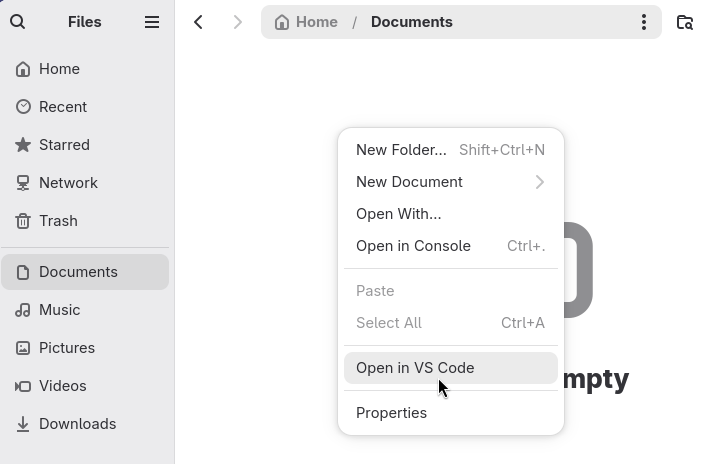
nautilus -qNow, when you right-click any folder, you will see the Open in VS Code option.
For KDE Desktop (Dolphin)
Create the Service Menu Folder:
mkdir -p ~/.local/share/kio/servicemenus/Create the Desktop File: Create a file named vscode.desktop in that folder using the VS Code editor.
code ~/.local/share/kio/servicemenus/vscode.desktopAdd Configuration: Paste the desktop configuration into the file and save.
[Desktop Entry]
Type=Service
ServiceTypes=KonqPopupMenu/Plugin
MimeType=inode/directory;
Actions=openInVSCode;
X-KDE-Priority=TopLevel

[Desktop Action openInVSCode]
Name=Open in VS Code
Icon=vscode
Exec=code %f
Make it Executable: You must make this file executable. Run the chmod command to grant execution permissions.
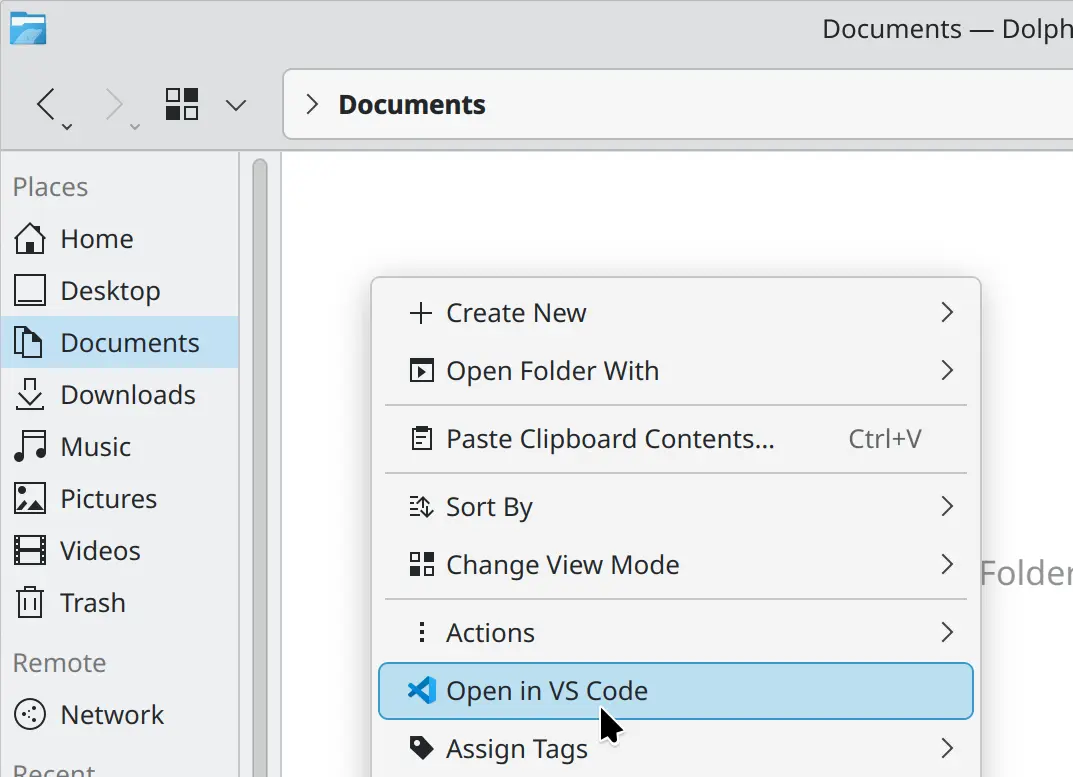
chmod +x ~/.local/share/kio/servicemenus/vscode.desktopOnce finished, the Open in VS Code action will appear in your Dolphin right-click menu.
Your Fedora 43 system is now ready for development with Visual Studio Code.
