How to Play Multiple Videos at Once in VLC (2026)
By default, VLC only allows one instance to run at a time. So when you try to open a second video, it just replaces the one that’s already playing. Here’s how to fix that.
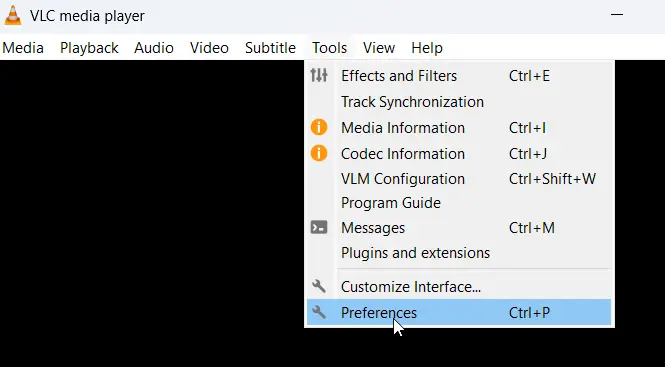
- Open VLC, go to Tools > Preferences.
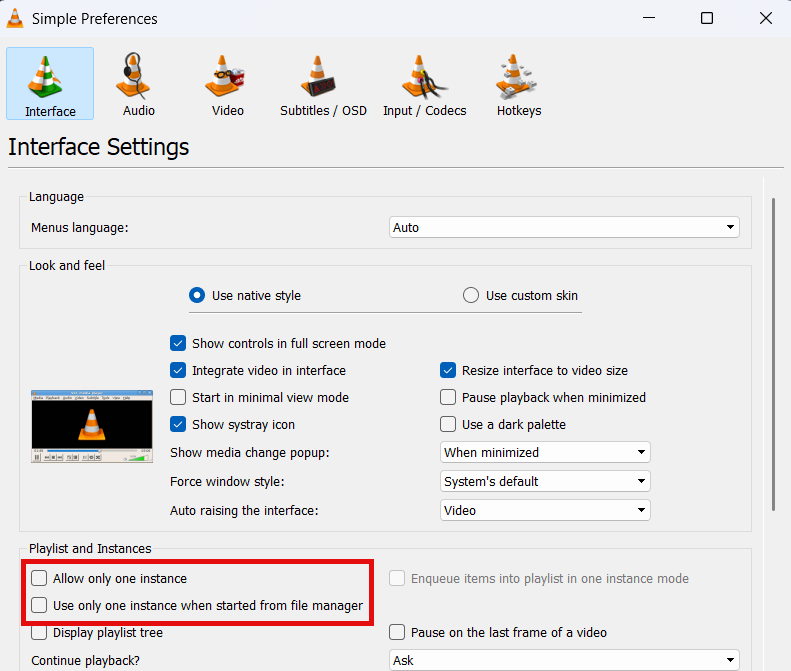
- In the Preferences window, click on Interface at the top.
- Uncheck “Allow only one instance” option.
- Also uncheck “Use only one instance when started from File Manager” option.
- Click Save.
Now open two video files — each one will open in its own separate VLC window and play at the same time.
That’s it! A quick settings change and you’re done.
Does this work on Windows, Mac, and Linux?
Yes. The setting is available in VLC on all platforms. The steps are the same.
