How to Set or Change the Default Text Editor in FileZilla (Windows & Linux)
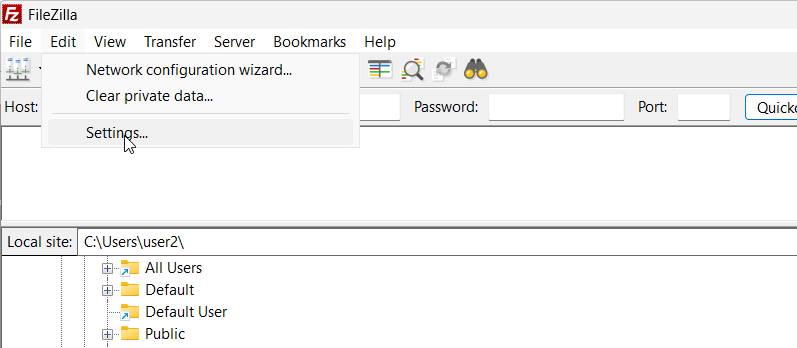
In this guide, I will show you how to set up a default text editor in FileZilla. If you haven’t configured a default editor yet, FileZilla will use your system’s default file associations.
This method works for both Windows and Linux, and I will demonstrate how to configure it for both operating systems.
How to Set a Default Editor in Windows
For this demonstration, I am going to set VS Code as the default editor.
- Open Settings: Navigate to Edit > Settings.
- Navigate to File Editing: In the sidebar, select File editing.
- Enable Custom Editor: Select the option “Use custom editor”.
- Find the Executable Path: You need to provide the full path to your editor’s executable file.
- Enter the Path: You can click the browse button to find the executable file (
.exe) of your text editor. - Save Changes: Click OK.
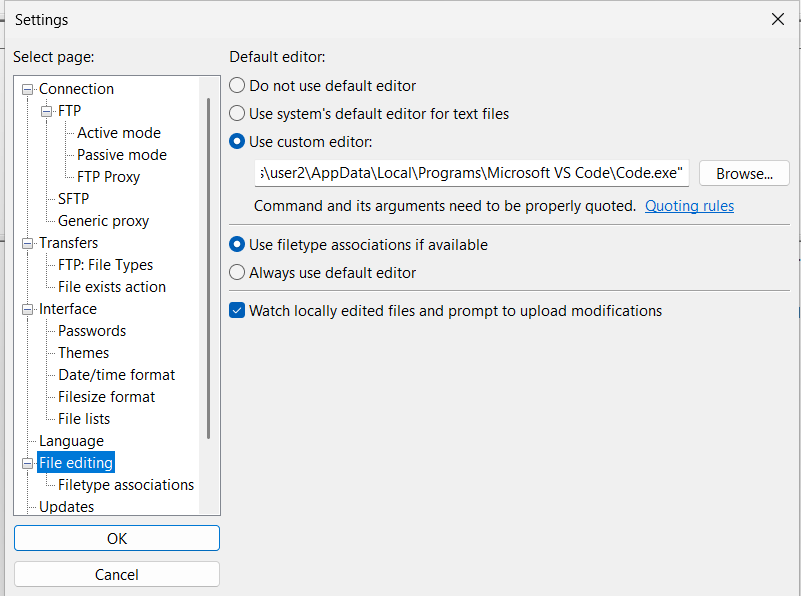
Now, whenever you edit a file, it will open in your default editor.
Customizing File Type Associations
Right now, FileZilla will use the default editor for all file types. However, you can override this to use different editors for specific extensions. For example, here is how to set Notepad as the default editor specifically for .txt files:
- Go back to Edit > Settings > File editing
- Select File type associations
- Add the Association: Specify the extension followed by the path to the executable. For Notepad, the entry would look like this:
txt "C:\Windows\notepad.exe" - Click OK
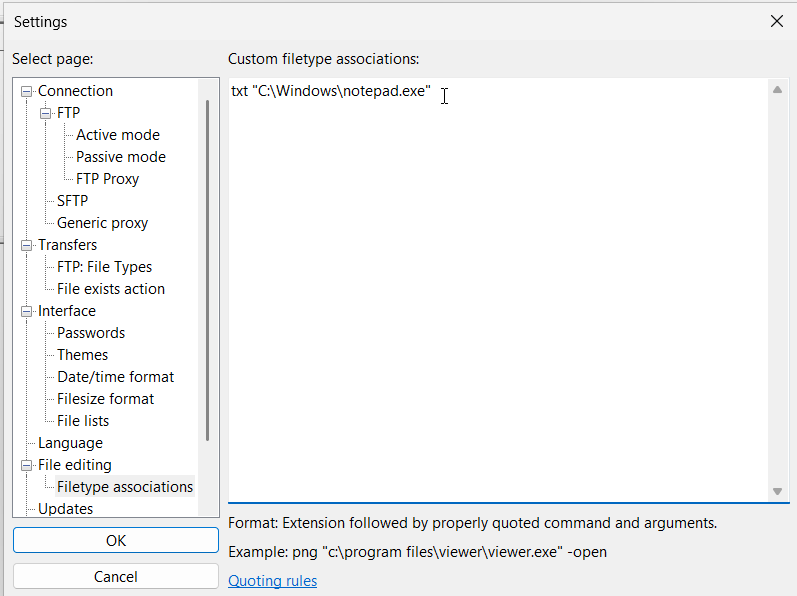
Now, FileZilla will open .txt files in Notepad while using VS Code for everything else.
How to Set a Default Editor in Linux (Ubuntu)
Setting a default editor in Linux follows a similar process. Here is how to set up VS Code on Ubuntu.
- Locate the Executable Path: In Linux,
codeis the standard command to launch VS Code. To find the exact path, open your terminal and type:which code. - Copy the Path: The terminal will return the full path (usually
/usr/bin/code). - Configure FileZilla by going to Edit > Settings > File editing, select “Use custom editor,” and paste the full path you retrieved from the terminal.
- Click OK.
Your files in FileZilla will now open using VS Code on your Linux system.
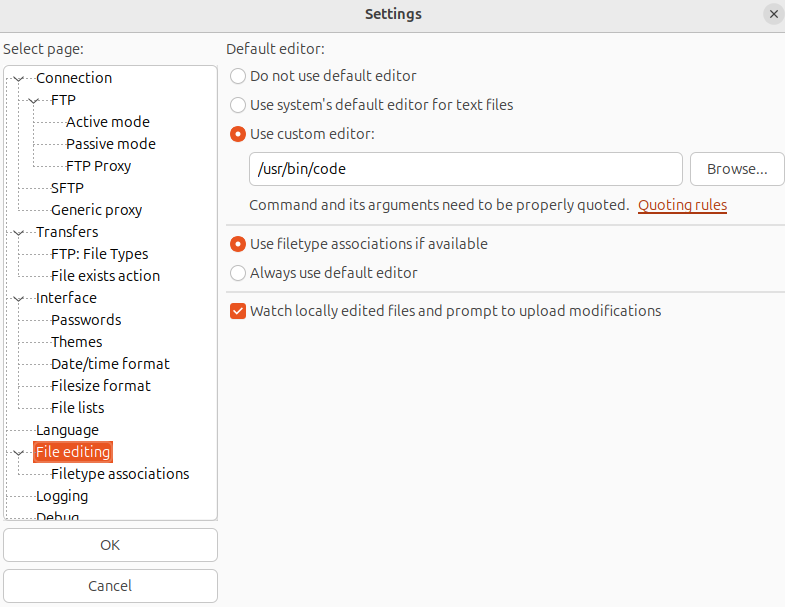
That’s it. You have now successfully set and customized the default text editor in FileZilla on both Windows and Linux. This makes editing remote files faster and allows you to use your preferred editor, such as VS Code or Notepad, directly from FileZilla.
