How to Get Desktop Icons on Fedora 44 GNOME
By default, desktop icons are disabled in Fedora 44 GNOME. If you want to place files, folders, and shortcuts directly on the desktop, you need to install a GNOME extension.
In this guide, we will look at how to enable desktop icons in Fedora 44 GNOME using a simple extension. We will also fix a common issue: the missing right-click option to create a new text document.
How to Get Desktop Icons on Fedora 44 GNOME
First, you need to install an app called Extension Manager. Once Extension Manager is installed, we will install an extension called Desktop Icons NG.
Step 1: Install the Extension Manager App
To install the GNOME Extension Manager. Open your terminal and run:
sudo dnf install gnome-extensions-appThis app lets you browse, install, and manage GNOME extensions easily.
Step 2: Install the Desktop Icons NG (DING) Extension
With the app installed, we can now fetch the specific extension that restores desktop icon functionality.
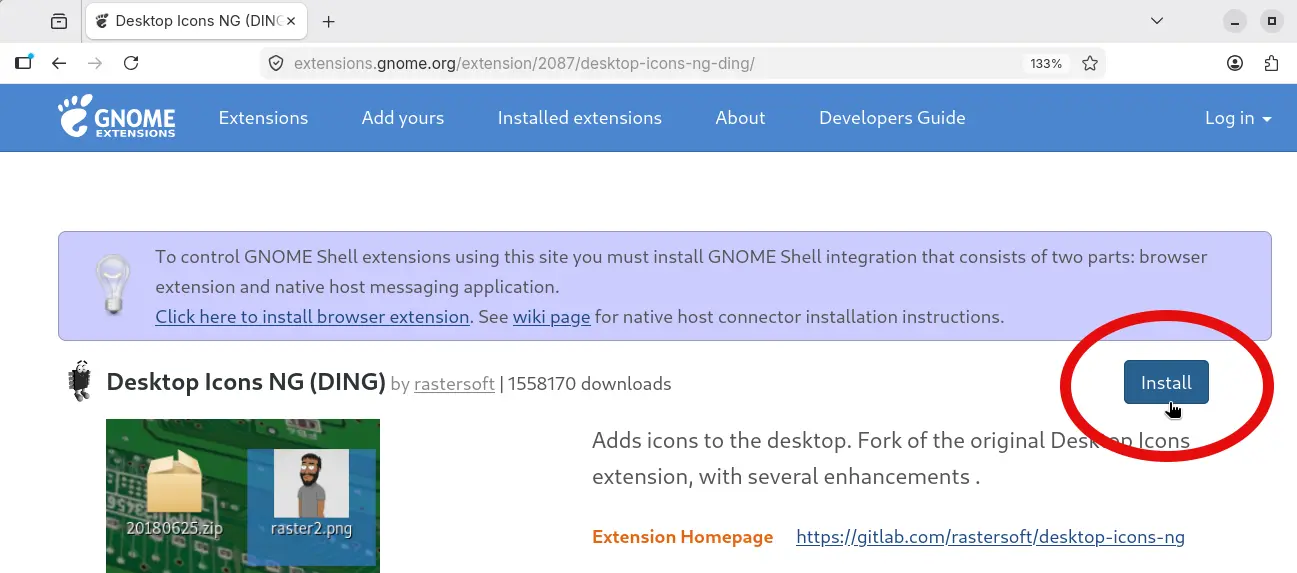
- Open your web browser and go to the Desktop Icons NG GNOME Extension Page: https://extensions.gnome.org/extension/2087/desktop-icons-ng-ding/
- Click the Install button or toggle switch on the page.
- When the browser prompt pops up, click Open Link and then confirm by selecting Install.
Once installed, desktop icons will be enabled on your Fedora 44 GNOME desktop right away — no restart needed.
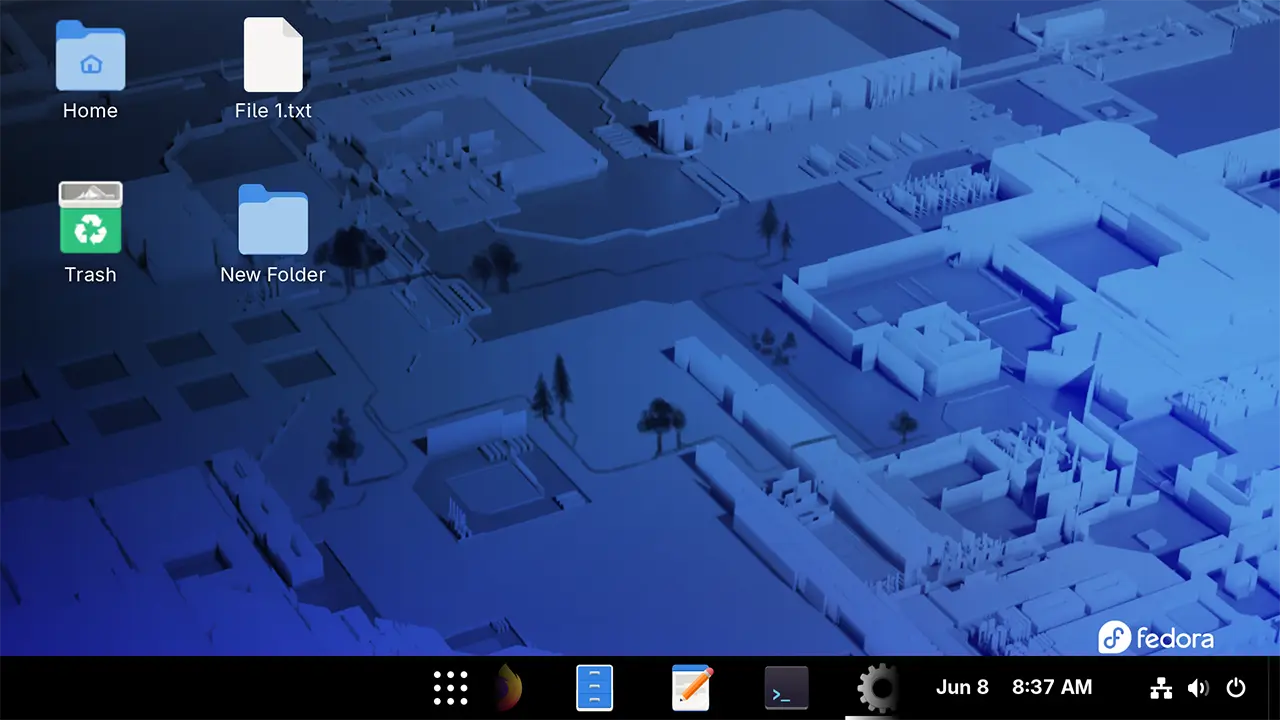
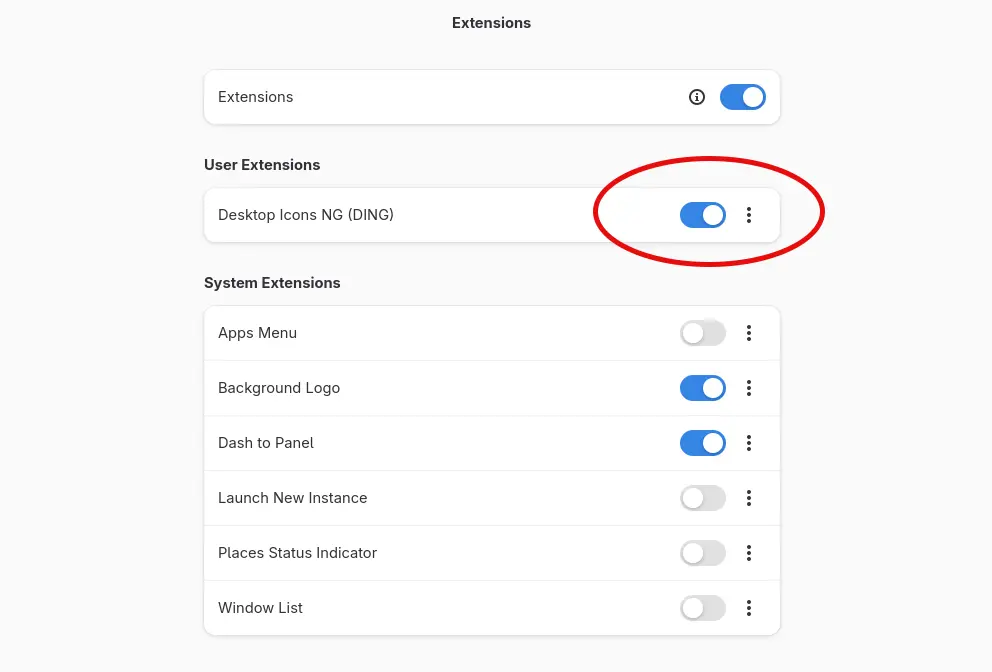
If you want to manage the extension, open Extension Manager. You will see Desktop Icons NG listed there and it will already be turned on. From there, you can go to Settings to adjust the extension options.
You will also notice that a right-click menu is now available on the desktop.
Add a “Create Text File” Option to the Right-Click Menu
One thing that may be missing from the right-click menu is the option to create a new text document. Here is how to fix that:
- Open your File Manager
- Go to the Templates folder in your home directory
- Right-click inside the Templates folder and select Open in Console
- Run the following command to create a new empty text file:
touch "New File.txt"
Now if you right-click anywhere on the desktop, you will see the New Document option to create a new text file.
What Next?
Now that your desktop icons are working, you can continue customizing your layout. In our next two guides, we will look at how to add a taskbar to the GNOME desktop and how to enable the minimize and maximize buttons in Fedora.